
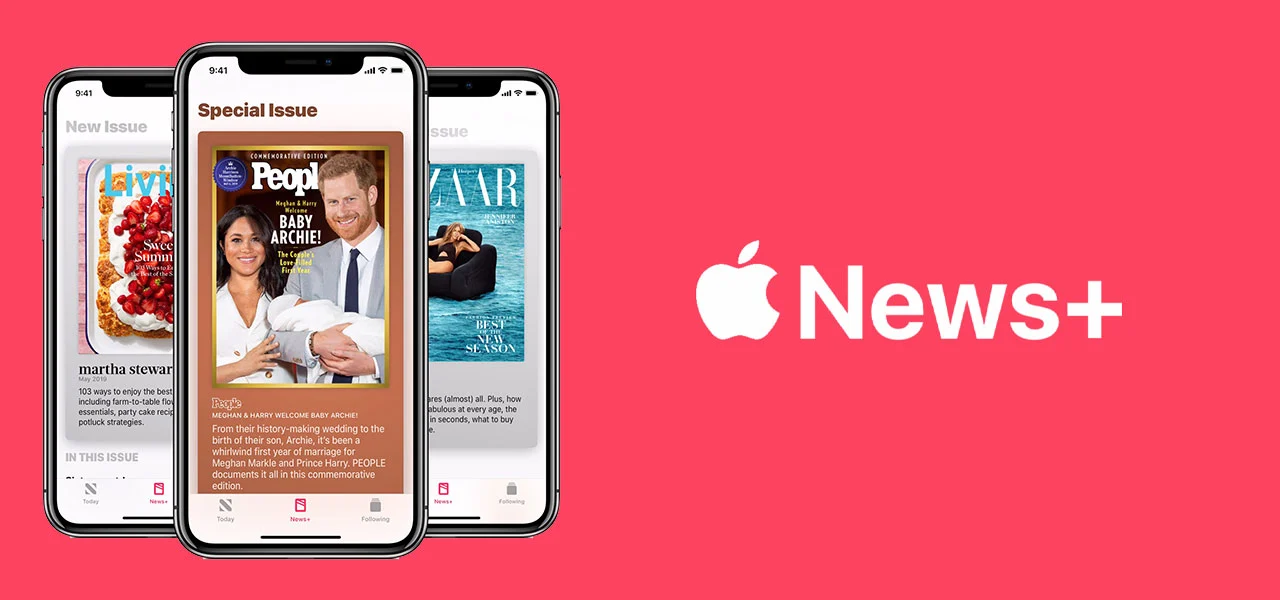
Introduction: Why Apple News+ Is More Than “Just Another Subscription”
If you read the news every day, you’ve probably felt the friction: paywalls that stop you mid-article, cluttered websites, autoplay ads, and the constant feeling that you’re juggling a dozen sources without a clear system. The Apple News subscription, better known as Apple News+, was designed to solve that—by bringing premium publications into a single, clean reading experience across Apple devices.
But is it actually worth paying for? That depends on how you consume news and magazines, whether you already subscribe to individual outlets, and how much you’ll use features like offline downloads, audio stories, and cross-device syncing.
This guide breaks it all down—from beginner basics (what Apple News+ includes and how to subscribe) to advanced strategies (how to train recommendations, manage notifications, use Family Sharing, and avoid common traps that make the subscription feel underwhelming). By the end, you’ll know exactly how to make an Apple News subscription work for you—and how to decide if it’s the right fit.
What Is the Apple News Subscription?
Apple News is the built-in Apple app for discovering and reading news stories. The Apple News subscription refers to Apple News+, the paid tier that unlocks additional content and features beyond the free experience.
Apple News (Free) vs. Apple News+ (Paid)
Here’s the practical difference:
Apple News (free):
- Curated top stories and headlines
- Access to some free articles from participating publishers
- Personalized recommendations based on reading habits
- Basic topic and channel following
Apple News+ (paid subscription):
- Access to a large catalog of premium magazines and participating newspapers within the app
- Many full-issue magazine editions in a polished, Apple-friendly format
- Additional paid articles that would otherwise be behind paywalls (availability varies by publisher)
- Offline downloads for magazines and some content
- A more “all-in-one” reading routine with fewer interruptions
In real life, Apple News+ tends to shine most for people who enjoy magazines, read across multiple publications, or want a calmer reading experience without bouncing between websites and paywalls.
What You Get with Apple News+ (Features and Content)
Apple News+ is often described as “magazines plus premium news,” but the details matter. Let’s break down the benefits that actually change your daily experience.
Magazine Catalog and Full Issues
For many subscribers, magazines are the main value. Apple News+ includes a wide selection of magazine titles, often with:
- Full current issues and back issues (availability depends on the title)
- A smooth, visual layout designed for iPhone and iPad reading
- The ability to jump from a table of contents to specific articles
If you like reading long-form features, interviews, lifestyle pieces, tech, food, travel, business, or hobbies, the magazine portion alone can justify the subscription—especially compared to buying individual issues.
Premium News and Paywalled Articles (How It Works in Practice)
Apple News+ can include premium stories from certain publishers. However, it’s important to understand a nuance: not every publisher gives full access to everything inside Apple News+. Some provide a generous selection; others provide a smaller subset.
A good way to think about it:
- Apple News+ expands what you can read without hitting paywalls,
- but it doesn’t replace every standalone subscription for every publication.
If you currently pay for multiple subscriptions, Apple News+ might consolidate some of them—but you’ll want to verify whether your must-read outlets are included in the way you expect.
Apple News Audio (Listen Instead of Read)
Apple News has audio features that can be useful when you’re commuting, cooking, or walking. Depending on your region and what Apple is offering at the time, you may see:
- Audio versions of selected news stories
- Curated audio collections
If you already use podcasts for news, this can complement your routine—especially when you want a “readable journalism” tone rather than talk-radio energy.
Offline Reading (Great for Travel and Commuting)
One of the most underrated perks of an Apple News subscription is offline access, particularly for magazines. If you travel, take the subway, or simply want to reduce screen-time friction, downloading issues in advance can be a game changer.
The key is to set up a habit:
- Download a few issues before you lose service,
- then read distraction-free later.
A Cleaner, More Consistent Reading Experience
Even when content comes from different publishers, Apple News presents it in a unified way:
- consistent typography,
- smoother performance than many publisher sites,
- fewer interruptions.
For a lot of people, this isn’t a “feature,” but it’s the reason they stick with it. You end up reading more because it’s simply easier.
Apple News+ Pricing, Free Trials, and Bundles (What to Know Before You Buy)
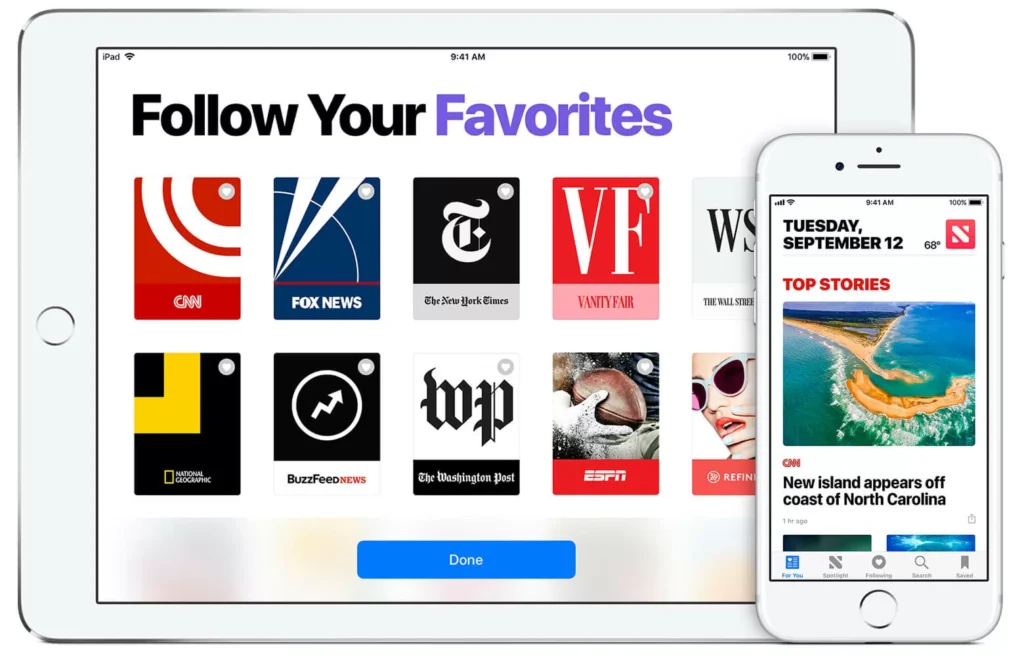
Pricing varies by country and can change over time, but in many regions Apple News+ is positioned as a mid-priced monthly subscription.
Monthly Cost and What It Competes With
Ask yourself a practical question: would you spend this amount on:
- one or two magazine subscriptions,
- a couple of individual magazine issues each month,
- or a single premium news subscription?
If the answer is yes, Apple News+ can be cost-effective—because you’re not paying per title.
Free Trials and Promotional Offers
Apple sometimes offers trials (especially for new subscribers or device purchases). If you’re on the fence, a trial is the best way to test:
- whether your favorite publications are included,
- whether you actually read in the app,
- and how well recommendations match your interests.
The smartest trial strategy is to use it like a real month: follow topics, download magazines, listen to audio, and evaluate usage honestly.
Apple One Bundles (When the Subscription Makes More Sense)
Apple News+ is also available in some Apple One bundle tiers in certain regions. If you already pay for multiple Apple services, bundling can make the Apple News subscription feel “almost free” compared to paying separately.
A quick evaluation:
- If you’re already paying for several Apple subscriptions, check whether a bundle tier reduces your total monthly cost.
- If you only want news, bundling may be unnecessary.
Device Compatibility and Availability (Don’t Skip This)
Before you commit, confirm two things: whether Apple News is supported in your country and which devices you’ll read on.
Supported Devices
Apple News is typically used on:
- iPhone
- iPad
- Mac (through the News app)
The experience is generally best on iPad for magazines, while iPhone is ideal for daily headlines and quick reading.
Regional Availability
Apple News (and Apple News+) isn’t available everywhere. In unsupported regions, you may not see the app or subscription option at all. If you travel frequently or have family members in different countries, this can affect how useful Family Sharing is for them.
How to Subscribe to Apple News+ (Step-by-Step)
Subscribing is straightforward, but doing the initial setup well makes a huge difference in how valuable the subscription feels.
Subscribing on iPhone or iPad
- Open the News app.
- Look for the Apple News+ tab or subscription offer.
- Confirm pricing and trial details (if offered).
- Authenticate using Face ID/Touch ID or your Apple ID password.
- Make sure your Apple ID payment method is up to date.
Subscribing on Mac
- Open the News app.
- Find the Apple News+ section.
- Complete the subscription flow with your Apple ID.
Confirming Billing and Managing Your Subscription
Apple subscriptions are managed through your Apple ID subscriptions area in device settings. This is where you can:
- see renewal dates,
- change plans (if available),
- and cancel if it’s not a fit.
Setting Up Apple News+ for Maximum Value (This Is Where Most People Miss Out)
A common reason people cancel the Apple News subscription is not because the content is weak, but because they never shape the app to their habits. Apple News gets better when you teach it what you want.
Follow Topics Like You Mean It
Instead of casually following a few broad topics, build a tight set of interests:
- industries you work in,
- hobbies you consistently read about,
- locations you care about,
- and specific publications that match your taste.
This improves recommendations and reduces irrelevant headlines.
Train Recommendations (Without Overthinking It)
Apple News adapts based on what you open, how long you read, and what you save. You can speed up the learning curve:
- open and read a handful of high-quality stories you genuinely like,
- save a few longer reads,
- and stop opening clickbait-style headlines “just to check.”
Your curiosity clicks can accidentally train the app in the wrong direction.
Build a Reading Routine
Apple News+ works best when it’s part of a routine, not a random app you open when bored. Two routines that work well:
- Morning: scan top headlines + one deeper story
- Evening: one magazine feature or saved long read
Consistency is what turns “I subscribed” into “this is worth it.”
Use Saved Stories Like a Personal Reading List
Save articles you want to read later and treat that list like your own curated feed. This is especially useful when you’re busy and don’t want to decide what to read in the moment.
Download Magazines Before You Need Them
If you want the offline advantage, make it automatic:
- download a few issues when you’re on Wi‑Fi,
- keep one or two “evergreen” magazines available (business, health, cooking),
- delete older downloads periodically to manage storage.
Practical Insights: Who Apple News+ Is Best For (and Who Should Skip It)
Not every subscription fits every reader. Here’s a grounded way to decide.
Apple News+ Is Usually Worth It If…
- You read multiple magazines or want to start reading them again
- You’re tired of hitting paywalls across different publishers
- You want a calmer, cleaner reading experience on iPhone/iPad
- You’d benefit from offline magazines for commuting or travel
- You like exploring new publications without committing to each one
You Might Skip Apple News+ If…
- You only read one specific publication and want full access to everything there
- You mostly consume news via social media, podcasts, or video
- You strongly prefer reading directly on publisher websites/apps for comments, newsletters, or specialized features
- Apple News isn’t supported in your region
A simple test: if you can name at least 5–10 publications you’d realistically read inside the app, Apple News+ is much more likely to feel like a bargain.
Real-World Examples: How Different People Use an Apple News Subscription
Concrete use cases make the value easier to picture.
Example 1: The Busy Professional
A consultant wants broad awareness without doomscrolling.
- Follows business, tech, and local city topics
- Reads 10 minutes each morning on iPhone
- Saves one deep analysis piece for evenings
- Uses magazines on weekends to slow down and read longer features
Result: fewer tabs, fewer paywalls, and a predictable information diet.
Example 2: The Magazine Lover
A reader used to buy individual magazine issues occasionally.
- Reads full issues on iPad
- Downloads issues for flights
- Dips into niches (food, design, fitness) without paying per title
Result: subscription costs less than buying multiple individual issues monthly.
Example 3: The Family Plan Household
A household shares subscriptions.
- One person reads business and finance
- Another reads lifestyle and health magazines
- A student uses it for general awareness and long-form reading practice
Result: the subscription feels far cheaper per person when shared appropriately.
Expert Tips to Get the Most Out of Apple News+
These are the tactics experienced users rely on to keep Apple News+ valuable month after month.
Tip 1: Treat “Following” Like Your Personal Newspaper Rack
Follow fewer topics, but make them intentional. Too many followed topics creates a noisy feed that feels like the entire internet again.
Tip 2: Balance Headlines and Long Reads
If you only scan headlines, any news app feels interchangeable. Apple News+ shines when you mix:
- quick updates,
- plus one or two deeper reads per week,
- plus magazines when you have time.
Tip 3: Customize Notifications Ruthlessly
News notifications can either help you stay informed or ruin your focus. Turn on alerts only for:
- a small number of essential topics,
- true breaking news,
- local weather/emergency events (if available and useful).
Tip 4: Use Search to Confirm Publisher Coverage
Before deciding to keep the subscription, search within Apple News for your favorite publishers and topics. Check:
- how often new stories appear,
- whether premium stories are accessible,
- and whether the publication’s style matches how you like to read.
Tip 5: Audit Your Reading After 30 Days
At the end of a month, ask:
- Did I read at least a few magazines or premium pieces I wouldn’t otherwise access?
- Did this replace any other subscriptions or purchases?
- Did it improve my news habits or just add another app?
This keeps the decision practical, not emotional.
Common Mistakes That Make Apple News+ Feel “Not Worth It”
Most disappointment comes from predictable missteps. Avoid these and your odds of loving the subscription go way up.
Mistake 1: Subscribing Without Checking Availability in Your Region
Some users assume Apple News+ works everywhere. If it’s limited where you live, you’ll waste time troubleshooting something that simply isn’t supported.
Mistake 2: Expecting It to Replace Every Single Publisher Subscription
Apple News+ can reduce paywalls, but it’s not a universal key to the entire internet. If you rely heavily on one outlet’s full coverage, you might still want that direct subscription.
Mistake 3: Never Following Topics or Training the Feed
If you don’t actively shape your interests, the app will feel generic. Personalization isn’t magic—you have to participate.
Mistake 4: Reading Only When You’re Bored
Apple News+ rewards routine. If you only open it randomly, you won’t build the habit that makes the subscription pay off.
Mistake 5: Ignoring Offline and Saving Features
If you never save stories or download magazines, you’re missing two of the most “subscription-worthy” benefits.
FAQs About Apple News Subscriptions (Apple News+)
Is Apple News+ the same as Apple News?
No. Apple News is the free app experience. Apple News+ is the paid subscription that unlocks additional premium content and magazines.
Can I share my Apple News+ subscription with family?
In many cases, yes—if you use Family Sharing with your Apple ID setup. Whether every family member can access it smoothly can depend on region and device compatibility.
Can I read Apple News+ magazines offline?
Yes, offline reading is one of the most practical features, especially for magazines. Download issues ahead of time so they’re available without Wi‑Fi or cellular data.
Does Apple News+ include every article from every publication?
Not necessarily. Apple News+ includes content from participating publishers, but the level of access can vary. Some publications provide lots of content; others provide a smaller selection.
Will Apple News+ replace my existing subscriptions?
It can reduce the need for some subscriptions, especially if you read broadly. But if you depend on one specific outlet’s full coverage or features, you may still prefer a direct subscription.
Can I cancel Apple News+ easily?
Yes. Like other Apple subscriptions, you can cancel through your Apple ID subscription settings. Access typically continues until the end of the billing period.
Is Apple News+ good for iPhone-only users?
Yes, especially for daily reading. That said, magazines often feel more comfortable on iPad due to screen size. Many iPhone-only users still find value if they read consistently.
How do I know if Apple News+ is worth it for me?
Track your first month. If you regularly read magazines or premium stories you wouldn’t otherwise buy, and it reduces paywall frustration, it’s usually worth keeping. If you barely open the app, it’s not.
Conclusion: A Smart Subscription—If You Use It Like One
The Apple News subscription (Apple News+) is at its best when you treat it as a premium reading environment, not just another app on your home screen. If you enjoy magazines, want a cleaner way to read across multiple sources, and like the idea of offline, distraction-reduced browsing, it can be a genuinely satisfying subscription—one that often costs less than maintaining several separate purchases.
The key is to set it up intentionally: follow the right topics, train the recommendations, save stories, download magazines, and build a routine you’ll actually stick to. Do that, and Apple News+ stops feeling like a monthly charge and starts feeling like a daily tool you rely on.
If you want, tell me your reading habits (magazines vs. breaking news, your favorite topics, and which devices you use), and I’ll recommend a setup checklist that matches your routine.